

UI
Easy way to add a dark mode to your Bubble app
In this tutorial, you'll learn how to create a Light and Dark mode for your Bubble app. All in less than 5 mins.
Himanshu Sharma · ·4 min read

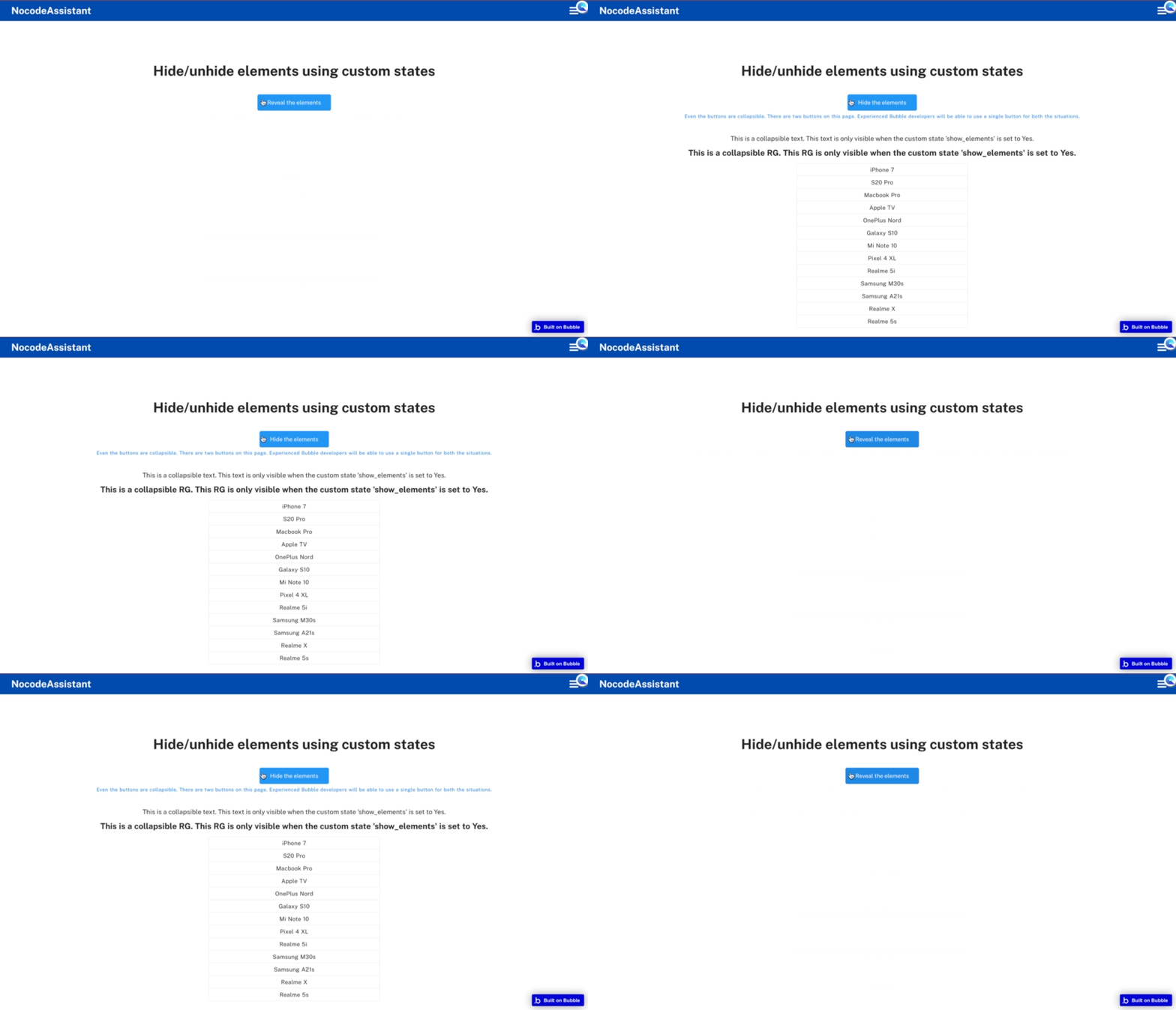
There are some cases where you’ll want to show some elements only under certain conditions.
You might find the ‘Show’ and ‘Hide’ functions in workflows helpful, but there are a few other ways. For example, a checkmark icon when you submit a form. A field that appears when you click a specific button.
As with everything in Bubble, there are various ways to achieve a thing. Each method has pros and cons, and not every solution will work for every use case.
The most flexible and preferred methods of the above are custom states and URL parameters. We will cover custom states in this tutorial and skip the URL parameters to keep the tutorial concise.
Custom states are temporary values stored in the user’s browser. They are unique for each user and are lost when you refresh or reload the page.
They can have a default value, and because their value is restored, they are handy for page navigation.
Bookmark
Using custom states in Bubble
Custom state is the one of the most powerful features of Bubble. And many Bubble beginners struggle to use them.
Select any element on your page where you want to store the custom state. You can keep the custom state on the page or any other element. It doesn’t make much of a difference.
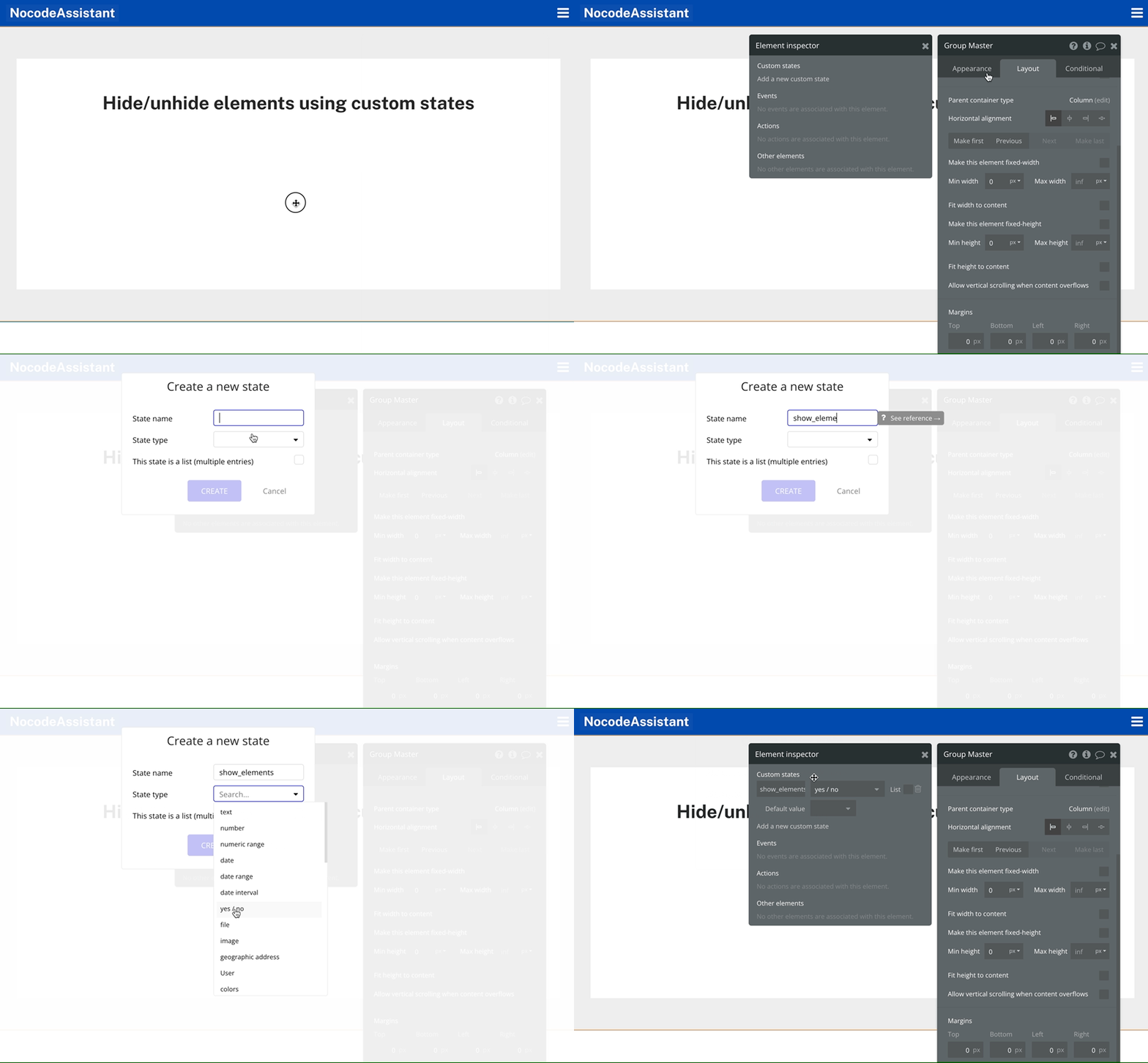
Creating a custom state on the page
We’ll need to make a few changes to the elements shown conditionally.
A common mistake is to have the elements visible on page load and hidden only under certain conditions.This works but has a minor UX issue.
You have a button that should only be visible when the current user is logged in.If a user is logged out, the button will flash on their screen and then be removed.What made the button flash?
Bubble waits to check conditions until a page is loaded.And because the button is visible by default, Bubble will make the button visible and hide it after a split second.
This makes the button flash on the screen.
To prevent this, I recommend that you hide such elements on page load. And only make them visible when the conditions are met.
The second mistake is not having the collapsible groups collapse their height and width. If the checkbox is checked, Bubble will use up the height and width occupied by the elements.
And the user will not notice any strange space.
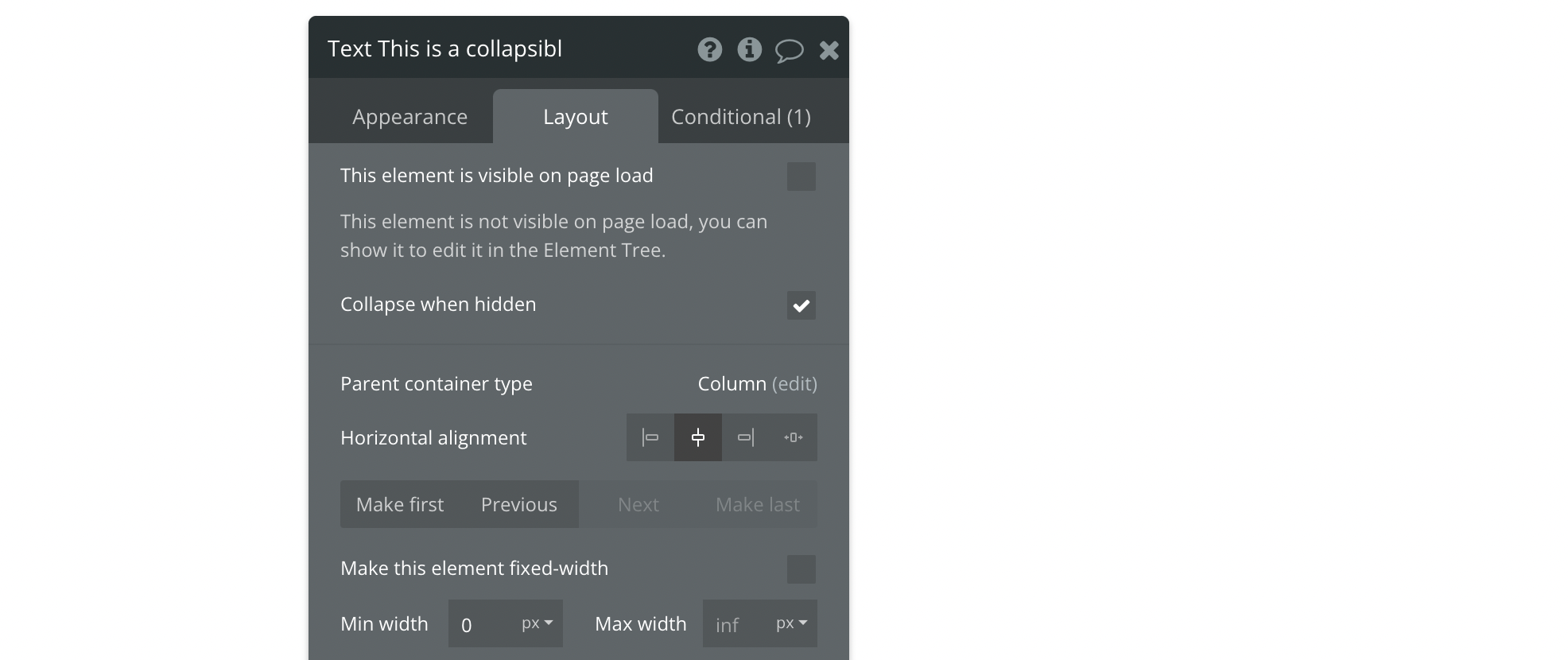
Collapse when hidden should be checked
We have two steps left after creating the custom state and configuring the element.
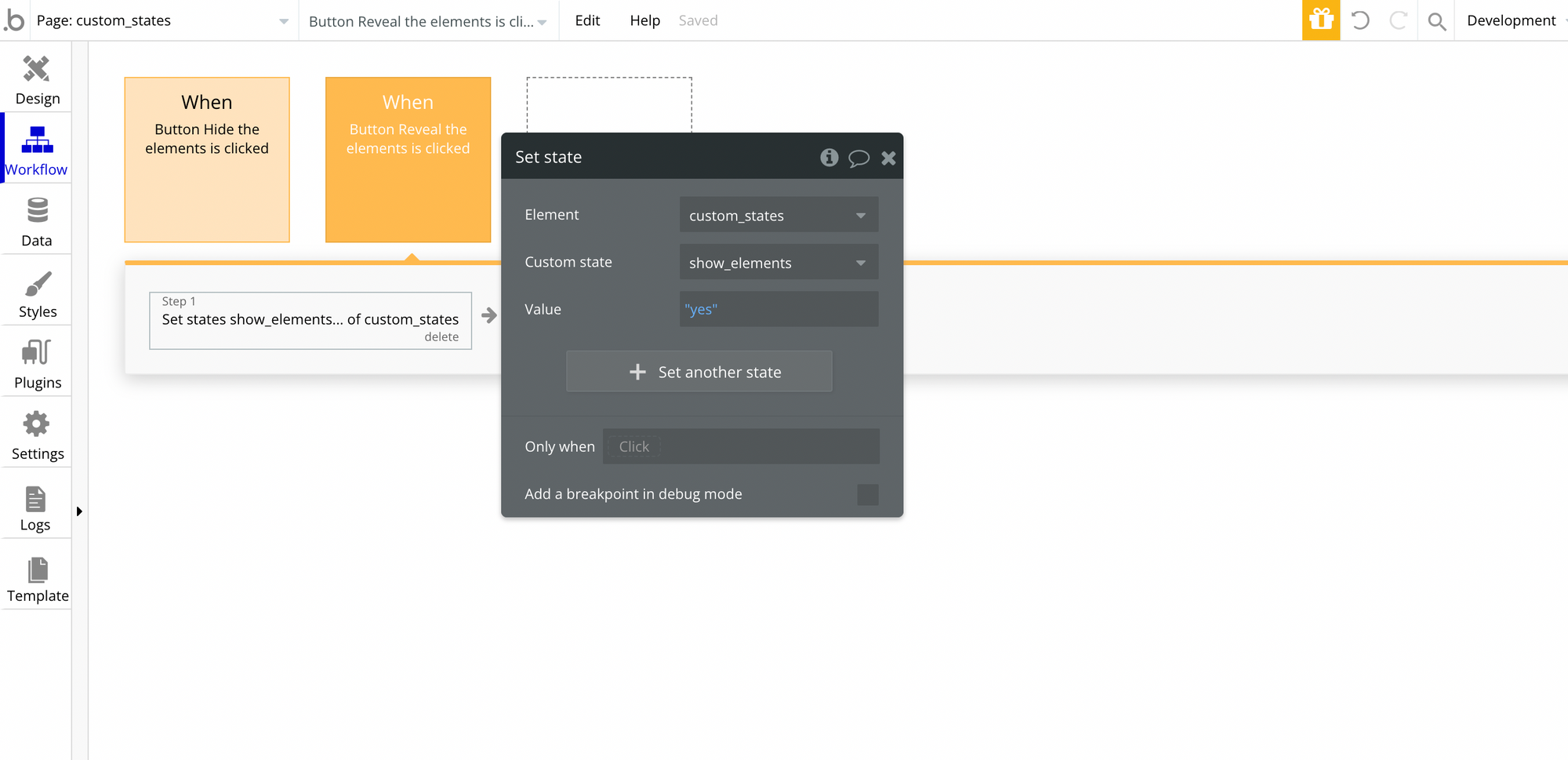
Step 1: Use a workflow to update the custom state. This will change the custom state value and toggle the visibility of the elements.
Step 2: Create a condition on the element to define when the element should be visible. This condition will check the custom state value.
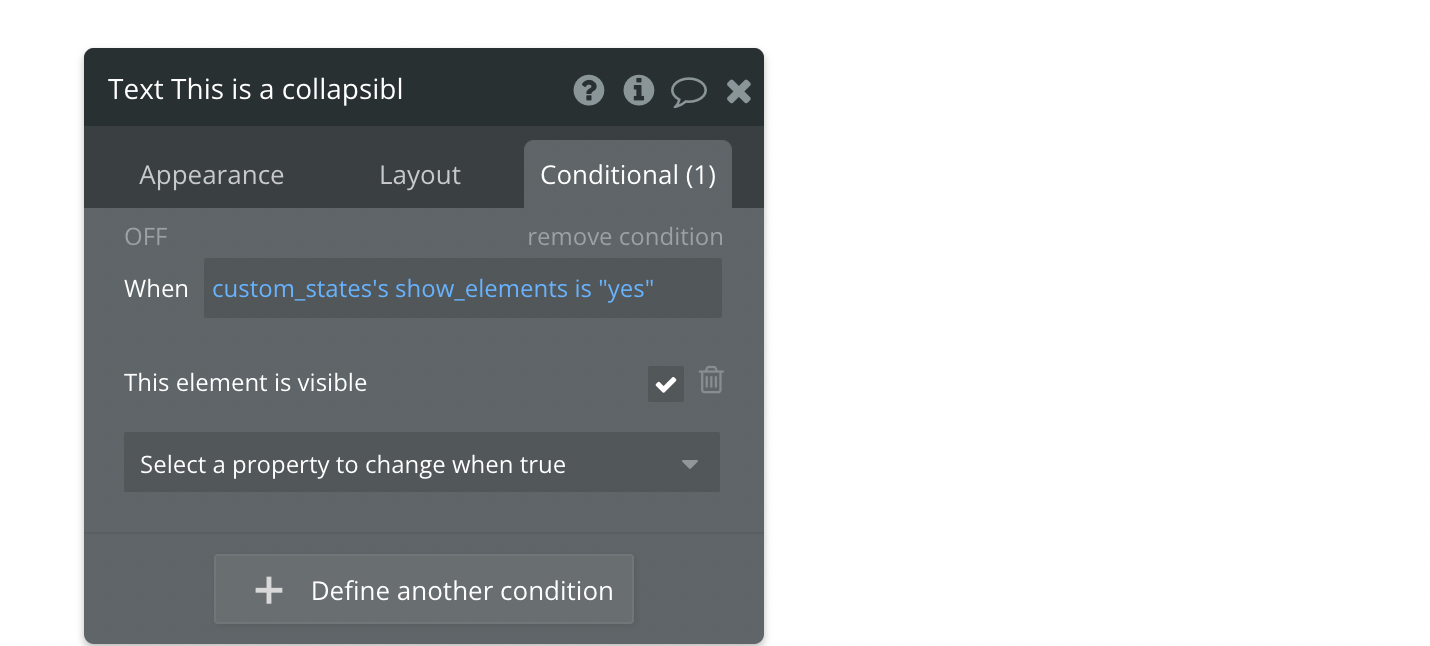
Conditional statement to check the custom state value and change the visibility
Bookmark
Operations on a list in Bubble.io
In this short Bubble tutorial, we’ll teach you how to work with lists. The two aspects of them: creating and manipulating.
Bookmark
Honest Bubble.io Review - the most user-friendly and powerful app builder?
Bubble is an amazing platform to build your business. It’s easy to use and can be up and running in a very short time. However, there are some limitations to what Bubble can do. Get an honest review of the pros and cons of Bubble.io.
Preview - Open live preview
Editor - Open Bubble editor
If you need some help with your Bubble app or a team of Bubble developers to build a Bubble app for you, reach out to me at [email protected]. You can also follow me on Twitter.
Continue reading
In this tutorial, you'll learn how to create a Light and Dark mode for your Bubble app. All in less than 5 mins.
You've likely heard about Single Page Apps (SPA) at least once on the Bubble forum. Since Single Page Apps don't navigate users to other pages, it's important to figure out how you'll handle content visibility.
Do you want to put a Group Focus inside a Repeating Group in Bubble but can't find a way? There is a workaround. We create a Reusable element.

