Complete guide to send notifications in your app in less than 30 minutes
Himanshu Sharma——4 min read—Updated March 5, 2023
Notifications are alerts which get sent to your app users. In this Bubble tutorial, we’ll learn how to set up notifications in our Bubble app.
Notifications might seem small, but they play a large role in engaging your users. You can send notifications to a user when they are assigned a task or someone mentions them etc.
If you’d like to send notifications to your app users, you don’t need any plugin. The set-up is simple and will take less than 30 minutes.
Database setup in Bubble
We’ll create a new data type to store all the notifications.
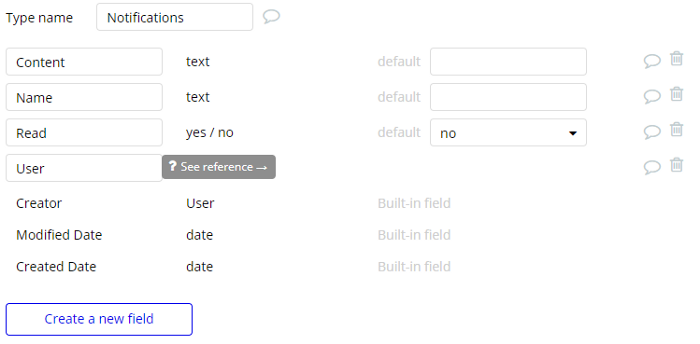
This data type will store the body of the notification, the associated person and whether it has been read.
Create a new data type called Notifications.
Content — to display the notifications text body.
Name — just a heading to denote the ‘notification type’, for e.g. A new task added or a new reminder added. This can be custom or pre-filled and can be left out as well.
Read — to denote whether the recipient has read the notification or not.
User — to save the User who has been assigned this notification.
You can customize these fields and add more fields if required.
Creating a new notification
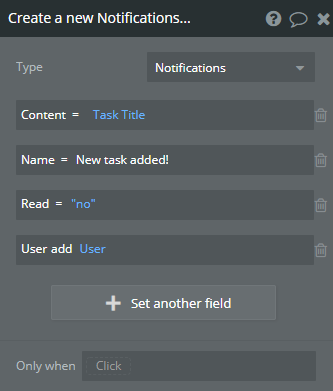
Depending upon our application, we’ll create a new notification workflow.
Once you’ve created a new notification entry, all left is for us to display these notifications.
Displaying the notifications
You can add a bell icon or any button you feel a user should click to view their notifications. I’ve added a small bell icon in my app that I want the users to click to view their notifications.
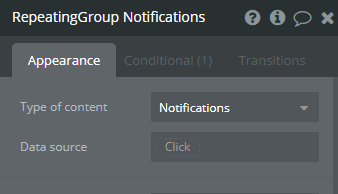
I then added a Group Focus to display the notifications. Once you’ve set up the design of the Group Focus, add a Repeating Group inside it.
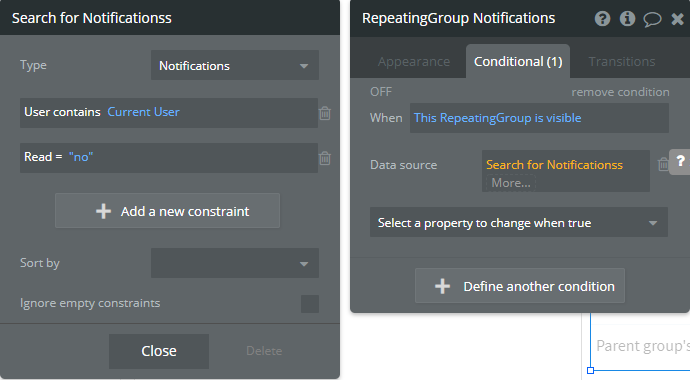
The type of content should be Notifications and the data source can be left blank. But how will it find the relevant notifications if the data source is blank? We’ll add the data source in the conditional statements.
Why put the data source in conditional statements?
The reasoning is that Bubble will load the Repeating Group content only when the condition is satisfied. And not on page load.
We don’t want to pre-load the notifications. We can load them when a user clicks on the notification icon. This will slightly improve page load speed and response time if you have multiple repeating groups on the page.
This setup will ensure that only the unread notifications are displayed in the Repeating Group.
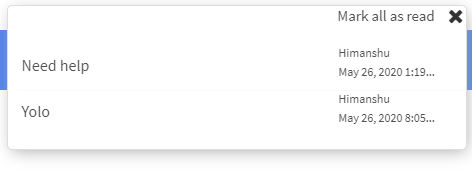
You can then add the elements in the Repeating Group to display all the information. Namely the text, number, date etc.
Create a trigger to display the Group Focus when the Notifications icon is clicked.
Once you have the Group Focus and the Repeating Group setup, you would like the notifications not to be displayed again once they’ve been read once.
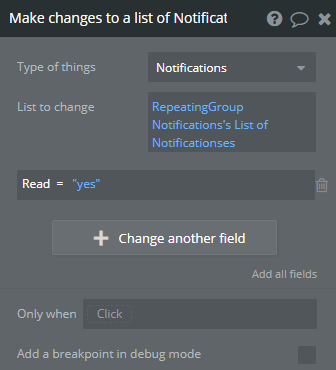
Add a new text element or a checkbox that the user can click to mark all the notifications as read. I’ve added a text element ‘Mark all as read’. When the user clicks on this, a workflow is triggered.
This updates the ‘Read’ field of all the current notifications to Yes. And if you recall, we had set a condition for the Repeating Group, only to display notifications where the ‘Read’ field is No.
As a result, all the notifications are hidden from the Repeating Group. You can then add another step to hide the Group Focus or whatever way you’d like your app to behave.
If you enjoyed this article, share it with your friends and colleagues!
If you need some help with your Bubble app or a team of Bubble developers to build a Bubble app for you, reach out to me at [email protected]. You can also follow me on Twitter.
Learn how to effectively use Boolean fields in Bubble to optimize your database management. Improve your app's efficiency and user experience with the simple but versatile Boolean field.